Documentation
Text, reading and read-aloud tools
What the widget's text and reading tools do for your visitors, how they use Read page aloud and its player, and where you offer or hide these tools.
Updated October 19, 2026
These widget tools help visitors read your pages their way – from bigger text to a voice that reads the page aloud. Here's what each one does.
What each tool does
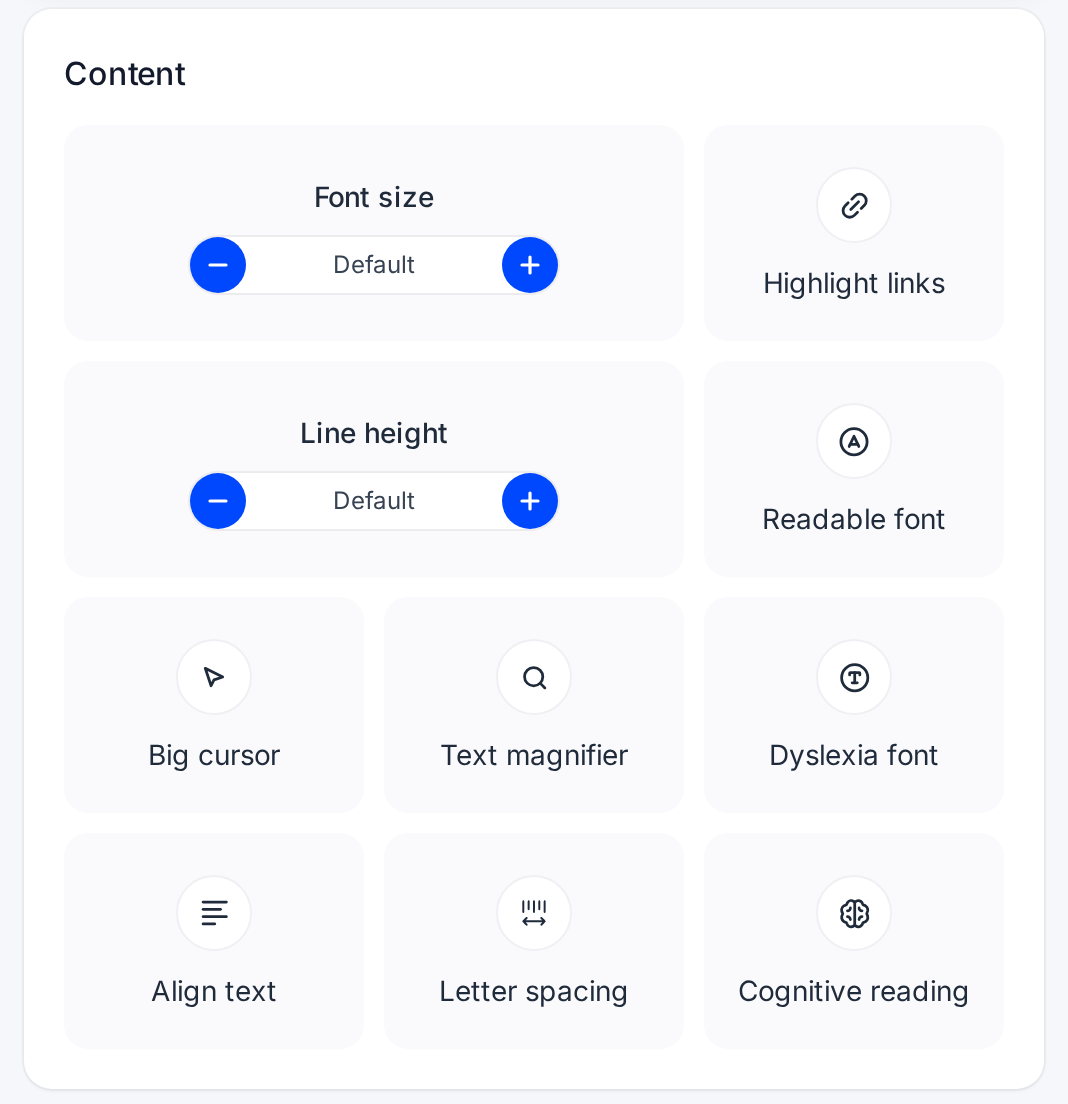
| Tool | What it does for visitors |
|---|---|
| Font size | Makes text bigger or smaller in steps: "-10%", "Default", "+10%", "+20%", "+35%" and "+50%". Form fields and buttons grow too. |
| Line height | More or less space between lines: "Tight", "Default", "+25%", "+50%", "+75%" or "+100%" (double spacing). |
| Letter spacing | Adds space between letters and between words, with the spacing values WCAG recommends. On or off. |
| Readable font | Switches the text to Atkinson Hyperlegible, a very clear font made for low vision. |
| Dyslexia font | Switches the text to OpenDyslexic, a font designed for readers with dyslexia. |
| Align text | Lines up the text blocks. Each click switches to the next step: "Left", "Center", "Right", then off. |
| Cognitive reading | Makes the first letters of every word a little bolder, which helps many people read faster and stay focused. |
| Text magnifier | A box follows the mouse pointer and shows the text under it in big letters. |
| Big cursor | A much larger mouse pointer: an arrow, a hand over links and buttons, a text cursor in input fields. |
| Highlight links | A thick underline for links in text, and a dark frame around buttons, menu links and image links – for people who can't tell links apart by color. |
| Read page aloud | Reads aloud any text or image the visitor clicks or taps. |
Good to know
- Keyboard users can focus the Font size or Line height box and press + or −. With Line height, buttons, menus and form fields keep their own spacing, so they don't break.
- Readable font and Dyslexia font replace each other – turning on one turns the other off. Both cover Latin letters, accents included; other scripts, such as Greek or Chinese, use the visitor's system font. The fonts come from allyWay's servers, not from an outside font service.
- Letter spacing and both fonts leave code samples and icons as they are. Align text doesn't change menus, buttons, tabs and code, and when it's off, every text block is exactly as your page had it.
- Cognitive reading changes nothing in your page's content: the bold effect is only drawn on top in the visitor's browser.
- Text magnifier also works with the keyboard: the box then appears below the element that has the focus. Highlight links gives the focused link an even stronger frame.
- Big cursor keeps your page's special pointers, for example for dragging or resizing. The Vision impaired profile switches it on too – see Accessibility profiles in the widget.
Read the page aloud
Turn on Read page aloud
Open the widget menu and click Read page aloud in the Orientation card.
Click a text or an image
Close the menu and click – or tap – any paragraph, heading or image. It's read aloud, and the paragraph is highlighted – in most browsers the word being read, too.
Use the player
At the bottom of the screen, the player has Play / Pause, Stop, the reading speed (0.75×, 1×, 1.25×, 1.5×), the volume (on computers) and Close.

Before anything is read, the player says “Click any text or image to hear it read aloud”. Turn it off
Click the × in the player, or the tile in the menu again.
- On phones, the speed is one button that switches to the next speed with each tap, and there's no volume slider – phones use their own volume buttons.
- Images are read with their description, for example "Image. A red bicycle in front of a bakery." – without one, "Image. No description available." allyWay's AI image descriptions help here.
- Links and buttons are read first, not opened: the player shows "Open ↗" or "Press", and clicking the same link again right afterwards opens it. Pressing Enter on a link opens it as usual.
- The voice comes from the visitor's own device or browser, and allyWay picks a voice that matches the language of the text.
- The Escape key stops reading, and so does switching to another browser tab. If you turned on keyboard shortcuts, Alt + Shift + R (⌥ + ⇧ + R on a Mac) turns reading aloud on and off.
Offer or hide these tools
You choose which of these tools the widget offers on the Modules page – see Choose which tools the widget offers. There, Read page aloud is the Read page row. The player moves up by itself when your website has a sticky bar at the bottom, such as a cookie banner or a cart bar; you can fine-tune its position with Customize in that row.
Check that it works
Open the widget menu on your website and press + at Font size: the text grows. Turn on Read page aloud, close the menu and click a paragraph: it's read aloud, and the player appears. Then click the × in the player and Reset settings in the menu.
Why doesn't some text get bigger?
It's probably part of a picture – only real text can grow – or it comes from another service embedded in your page, for example a booking form or a map.
Why don't Text magnifier and Big cursor show on phones?
Text magnifier is only offered on devices with a mouse or trackpad, Big cursor on devices with a mouse. On touch-only phones and tablets, their tiles aren't shown.
Cognitive reading says "Not supported"
The tool needs a modern browser, for example a current Chrome, Edge, Firefox or Safari. In older browsers its tile is grayed out.