Documentation
Color, navigation and keyboard tools
What the widget's color, orientation and keyboard tools do for your visitors – from Dark contrast to Page structure and the keyboard shortcuts.
Updated October 20, 2026
These widget tools help visitors who need other colors, fewer distractions or a way around the page without a mouse. Here's what each one does.
Color tools
These tools are in the Color card of the widget menu.
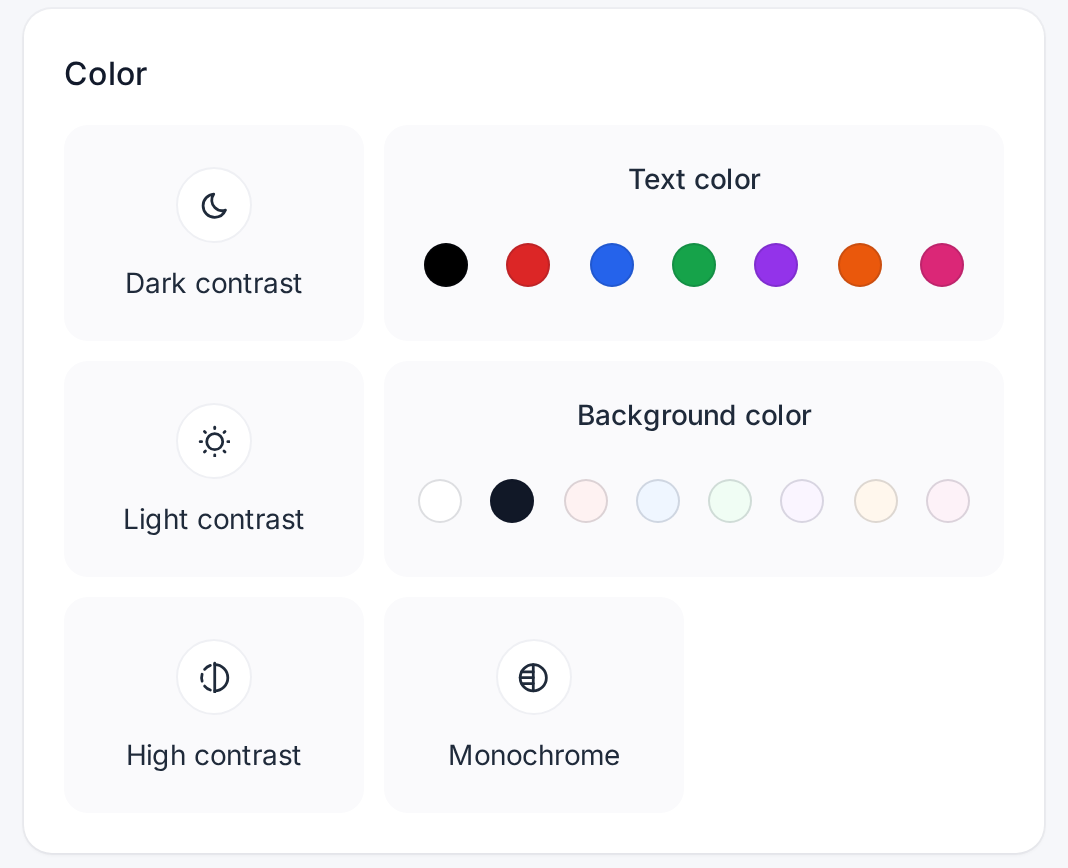
| Tool | What it does for visitors |
|---|---|
| Dark contrast | Light text on a dark background. |
| Light contrast | Dark text on a light background. |
| High contrast | The strongest contrast: black background, white text and yellow links. |
| Monochrome | Shows the whole page in black, white and gray. The widget menu keeps its colors. |
| Text color | Seven colors for all text, from "Black" to "Pink". Links get an underline, so they stay recognizable. |
| Background color | Eight colors for the page's plain backgrounds, from "White" and "Dark" to soft tints like "Light blue". Buttons keep their colors, and the text adjusts to stay readable. |
One click on a color applies it to the whole page; clicking it again, or the Reset button under the colors, removes it.
- allyWay recolors each part of your page by its real colors, so your layout stays intact. Photos keep their colors, logos with a transparent background are inverted where needed, and turning a contrast mode off restores your colors exactly.
- Dark contrast, Light contrast, High contrast and Background color don't stack: the page shows the one picked last. Monochrome and Text color can be added on top, and all other tools combine with any color tool.
- If a visitor's device already runs its own high contrast mode, such as a Windows contrast theme, the three contrast tiles are grayed out with the note "Your device's high contrast mode is already on."
Orientation tools
These tools are in the Orientation card.
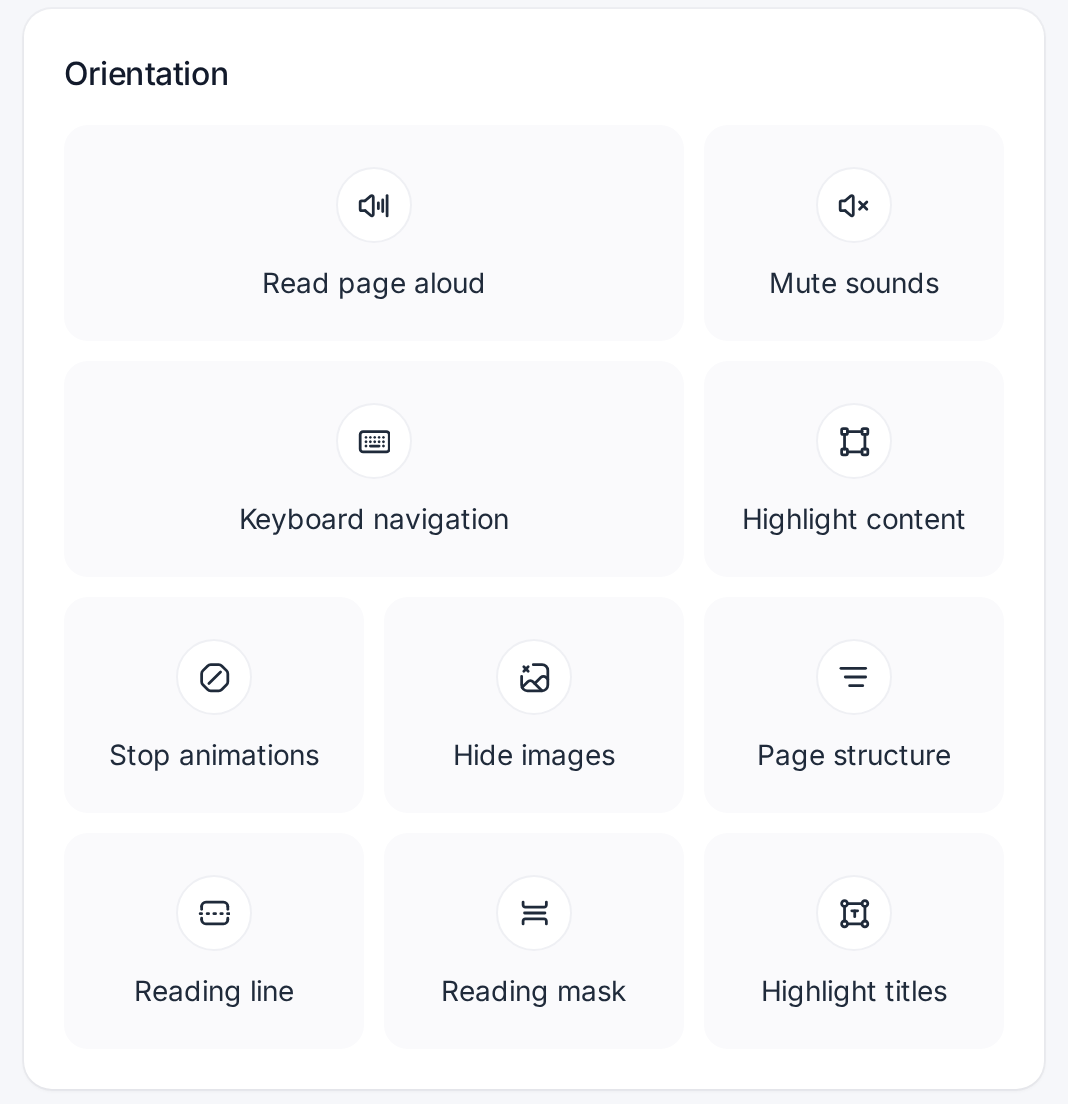
| Tool | What it does for visitors |
|---|---|
| Reading line | A line follows the mouse pointer – or a finger on a touch screen – so visitors don't lose their place. |
| Reading mask | Dims the page except a strip around the pointer, so only the lines being read stand out. |
| Highlight content | Frames the paragraph, link, button or image under the pointer. |
| Highlight titles | Frames every heading, so the page's heading structure is easy to see. |
| Hide images | Hides images and background pictures. Icons in buttons and links stay, and the layout doesn't jump. |
| Mute sounds | Silences videos, audio and sound effects – also embedded YouTube, Vimeo and SoundCloud players. |
| Stop animations | Freezes animated GIFs, stops automatic sliders and moving text, and pauses videos that play by themselves. |
- The highlight tools only draw frames on top of the page – your content isn't changed.
- With Mute sounds on, Read page aloud keeps working; turned off, every player gets its earlier volume back.
- Stop animations keeps videos a visitor starts on purpose playing. The profiles Seizure safe and ADHD friendly switch it on – see Accessibility profiles in the widget.
Get around with the keyboard
Keyboard navigation, in the Orientation card, shows a strong frame where the keyboard focus is, and single keys jump through the page: H to the next heading, M to the next menu item or button, G to the next image, F to the next form field and B to the next video or audio player. These keys never act together with Ctrl, ⌘ or Alt, and not while a visitor types in a field.
Open Page structure
Open the widget menu and click Page structure in the Orientation card.
Pick a tab
Headings shows all headings as an outline, Regions the page's areas – header, navigation, main content, footer – and Links all links.
Click an entry
The page jumps there. With the mouse, a frame highlights the place for two seconds and the menu stays open; with the keyboard or on a phone, the menu closes and the focus moves there. Back returns to the tools.
The Jump to content list at the bottom of the menu is quicker: visitors choose Main content, Navigation, Footer or Sidebar, and the focus moves there – handy for skipping long menus. It lists only the areas the widget finds on the page.
Keyboard shortcuts
When you turn on Enable keyboard shortcuts on the Modules page, visitors can use:
| Action | Windows / Linux | Mac |
|---|---|---|
| Open or close the menu | Ctrl + . | ⌘ + . |
| Read page aloud on or off | Alt + Shift + R | ⌥ + ⇧ + R |
| Keyboard navigation on or off | Alt + Shift + K | ⌥ + ⇧ + K |
Shortcuts are off for new websites; Escape always closes the menu. The menu itself works with the keyboard and screen readers: Tab moves between controls, the arrow keys between tiles, and screen readers hear whether each tool is on.
Offer or hide these tools
You choose which tools the widget offers on the Modules page – see Choose which tools the widget offers. There, the Jump to content list is the Skip to content row.
Check that it works
Open the widget menu on your website and click Dark contrast: the page turns dark. Click Page structure and a heading: the page jumps there. Then click Reset settings in the menu.
Why do several color tiles look switched on, but only one works?
Dark contrast, Light contrast, High contrast and Background color don't stack – the page shows the one picked last. Click Reset settings and pick just one.
Why does an embedded video or map keep its colors or sound?
Content embedded from other services – video players, maps, forms in a frame – can't be recolored, and some outside players can't be muted.
Why don't the H, M, G, F and B keys do anything?
They only work while Keyboard navigation is on, never together with Ctrl, ⌘ or Alt, and not while the visitor types in a field.