Documentation
What the widget offers your visitors
What visitors see when allyWay is on your website: the button, the Accessibility adjustments menu, its profiles and tools, and what happens on its own.
Updated October 16, 2026
Once allyWay is on your website, visitors see a small round button in a corner of every page. It opens the Accessibility adjustments menu, where anyone can adapt the page to their needs.
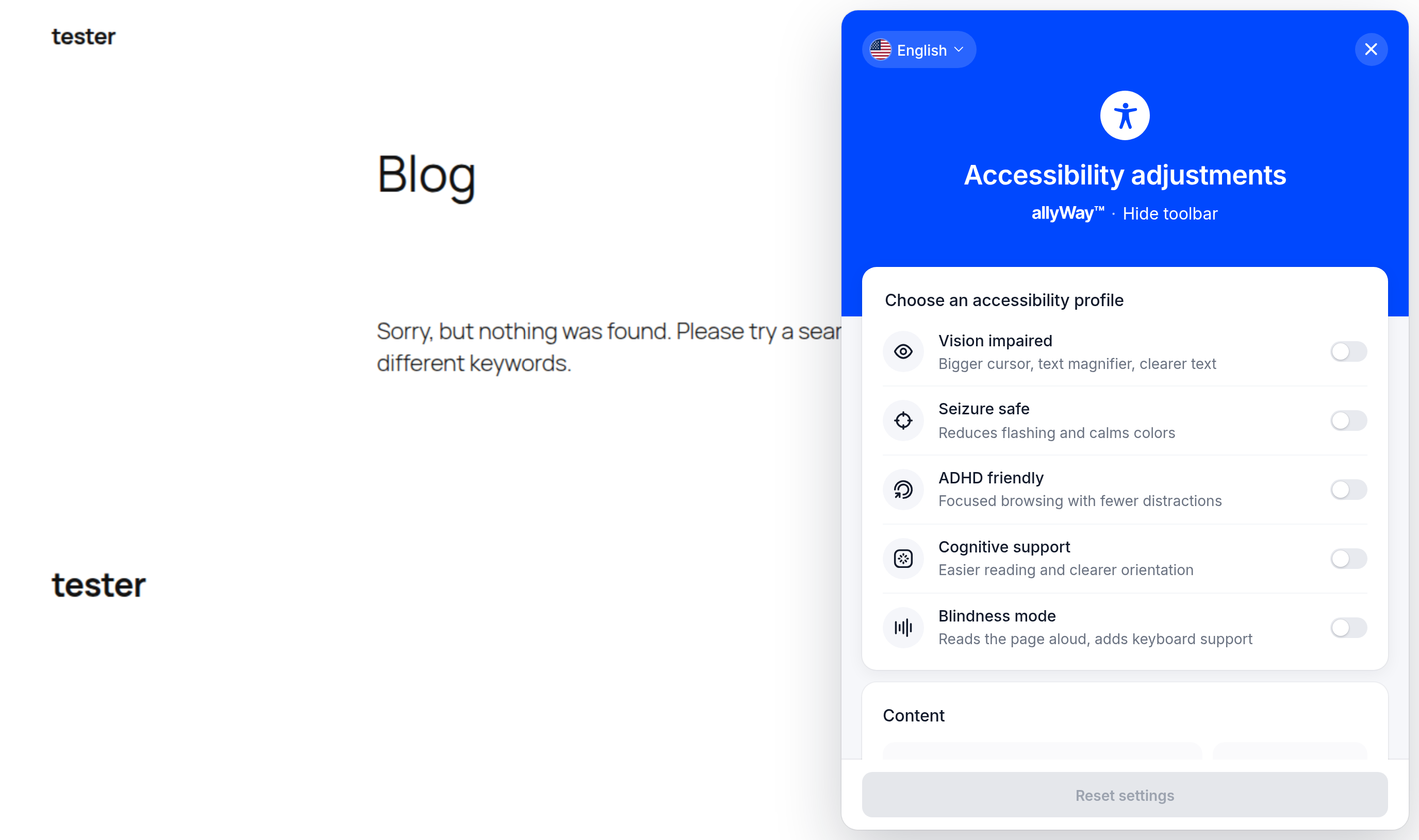
What's in the menu
- Choose an accessibility profile – presets that switch on several tools for one need. See Accessibility profiles in the widget.
- Content – text and reading tools, such as font size, line height and a readable font.
- Color – contrast and color tools.
- Orientation – tools for finding your way, such as reading the page aloud, keyboard navigation and a reading mask.
- Reset settings at the bottom turns everything off again.
The header has the language button with a flag (a list only when you offer more than one language), the close button and the link Hide toolbar – plus Statement if you show your accessibility statement in the widget. Which profiles and tools appear is up to you: Choose which tools the widget offers.
How visitors use it
Open the menu
Click or tap the round allyWay button. Keyboard users reach it with Tab and open it with Enter or Space. If you turned on keyboard shortcuts, Ctrl + . (⌘ + . on a Mac) opens it too. On phones the menu fills the whole screen.
Pick a profile or a tool
The page changes right away. On a computer, resting the mouse on a tool shows a short explanation; screen readers read it too.
Close the menu
Use the × button, the Escape key or a click outside the menu. Everything a visitor turned on stays on.
Turn everything off again
Reset settings at the bottom of the menu turns off every profile and tool – no page reload needed.
What happens on its own – and what doesn't
- Nothing on the page changes until a visitor picks something. The widget never switches a tool on by itself, and a visitor's choices only change the page in their own browser.
- A visitor's choices are remembered in their browser – not on our servers and not in a cookie.
- With a plan, allyWay also adds fixes that only screen readers notice, such as image descriptions (alt text) and names for links and buttons. Visitors don't see them, but they hear them. During the free trial allyWay fixes nothing.
- Changes visitors would notice – for example a stronger color for text that is hard to read – are never added by themselves: they go live only after you approve them in Scan & Fix.
Check that it works
Open your website in a private (incognito) window, click the allyWay button, switch on a tool and watch the page change. Then click Reset settings.
I don't see the button on my website
Check that the installation code is on that page, that your trial or plan is active, and that at least one tool is switched on on the Modules page – with every tool off, the widget shows no button. Missing only on phones, tablets or computers? Check Hide on Mobile, Hide on Tablet and Hide on Desktop in Widget position on the Design page.
Can visitors hide the button?
Yes. With Hide toolbar in the menu's header they hide it for this visit, for 24 hours or for one week – only in their own browser. After that it comes back by itself.
Does the widget work on phones?
Yes. On phones the menu fills the screen and shows the tools in two columns. You can give phones their own button position or hide the button there – see Customize the widget's design.
What do visitors see when my trial or plan has ended?
Nothing: the widget simply doesn't appear, and nothing on your pages breaks. It comes back with all your settings as soon as your plan is active again.