Documentation
Customize the widget's design
Change the widget button's icon, size, border, color and position for desktop, tablet and mobile, then preview and save – no new code needed.
Updated October 16, 2026
On the Design page you choose how the widget button looks and where it sits. Every website in your account has its own design, and changing it never changes your installation code.
Before you start
- Pick the website in the website switcher at the top of the left menu – the design belongs to the website selected there.
Change the design
Open the Design page
Click Design in the menu. The page has the cards Widget Design, Color, Widget position and Language. The Preview card on the right shows your changes right away, for desktop, tablet or mobile.
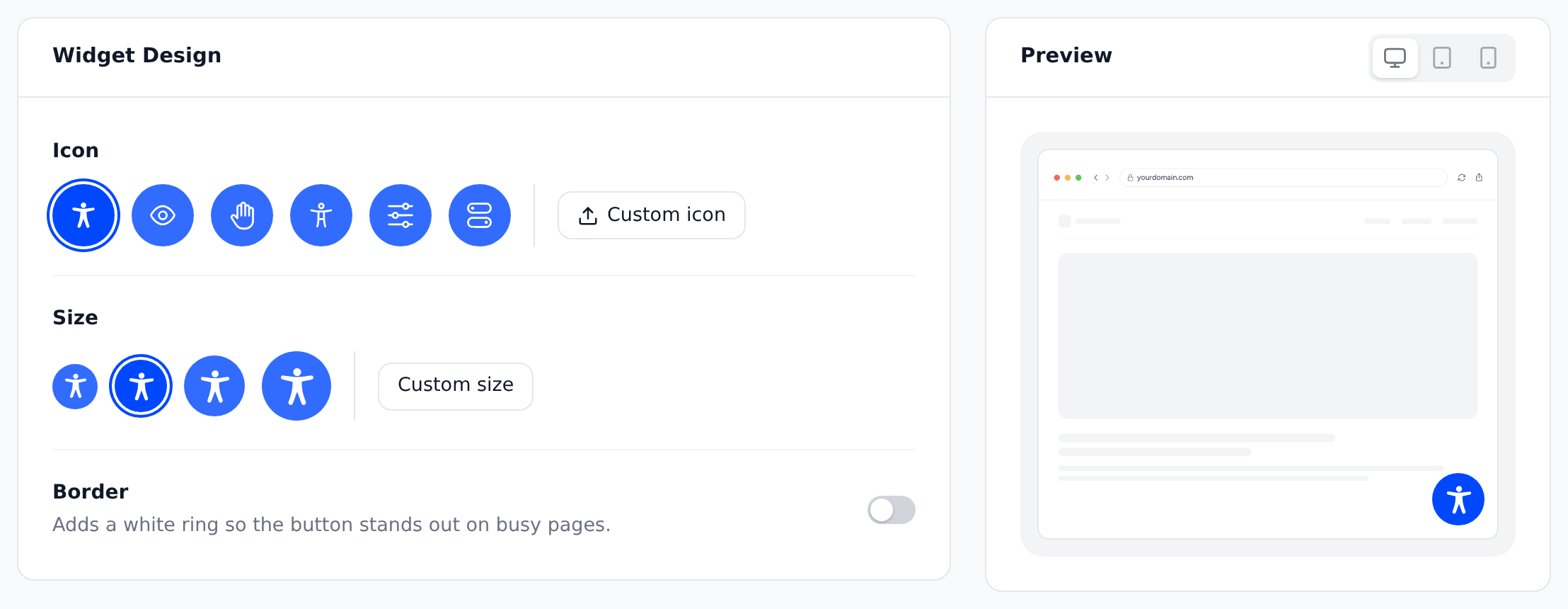
Icon, size and border, with the preview on the right. Pick the icon, size and border
Under Icon, click one of the six icons, or upload your own with Custom icon. Under Size, pick one of four sizes (44, 52, 60 or 68 pixels), or set any size from 44 to 80 pixels with Custom size. Border adds a white ring so the button stands out on busy pages.
Choose the color
In Color, click one of the eight colors, or click Custom color to pick any color – for example your exact brand color.
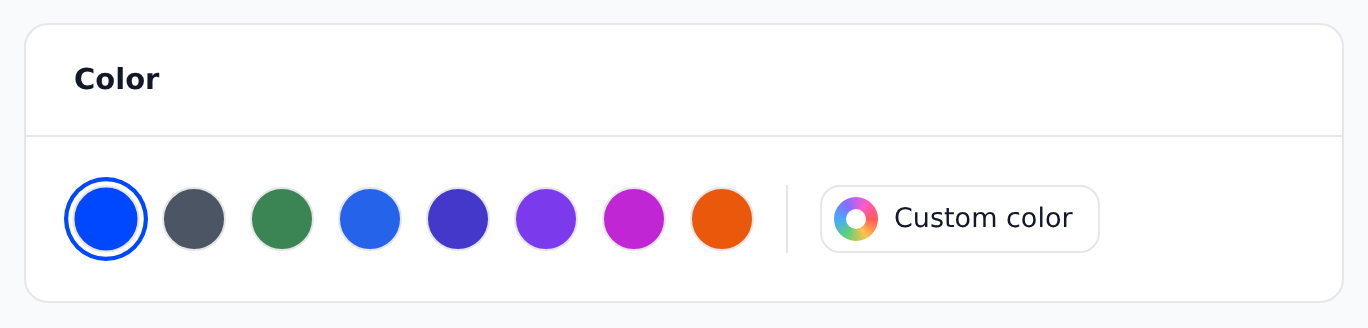
The Color card. Place the button
In Widget position, choose Desktop, Tablet or Mobile, then click one of the eight spots in the picture. Adjust Distance from edge if you like. Each device has its own spot, its own distance and its own Hide on … switch.
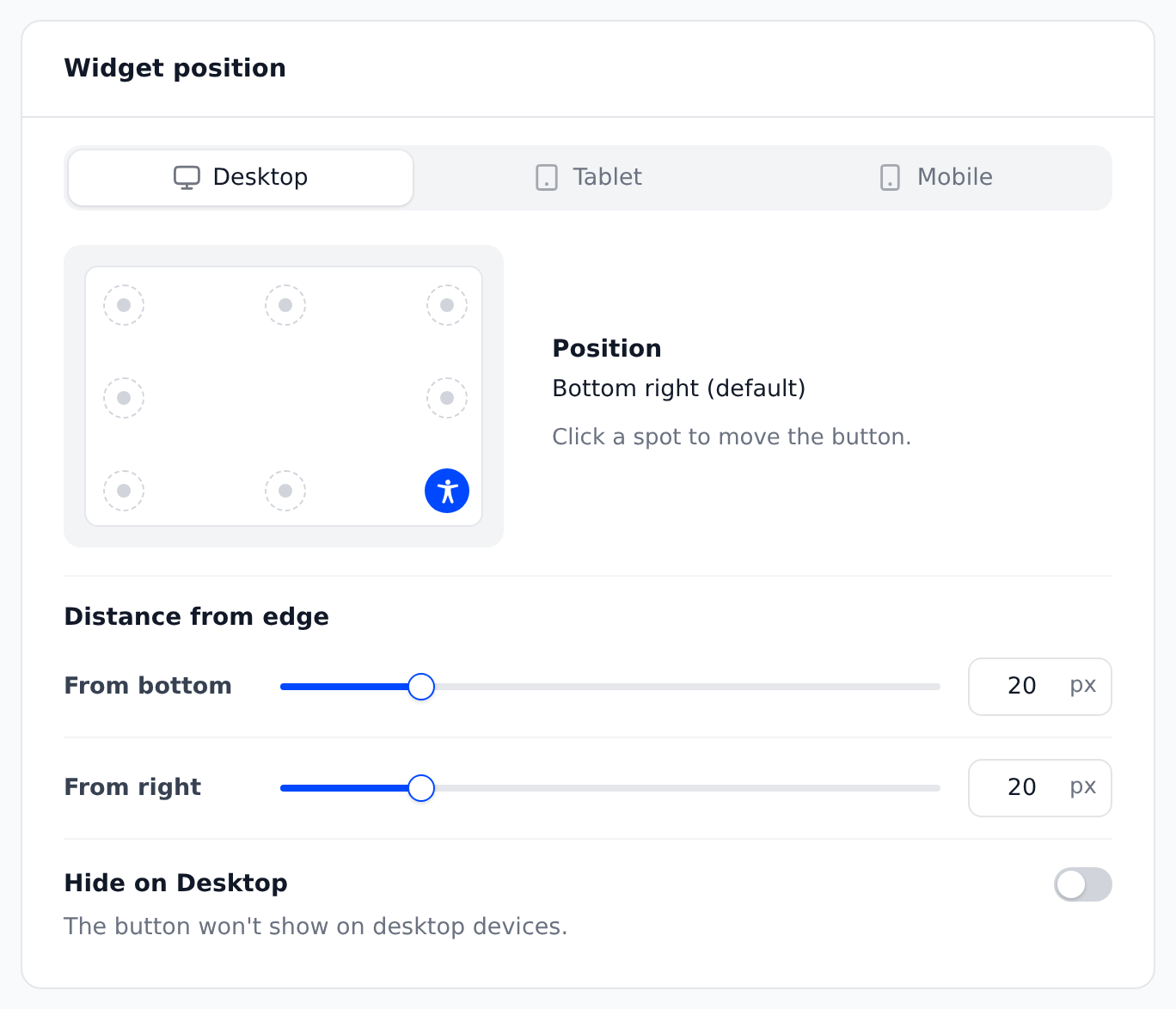
The Widget position card. Save your changes
Click Save changes at the top right. You see "Changes saved", and the button changes to Saved.
Good to know
- Readable on any color: allyWay uses white or dark text and icons on your color – white whenever it reaches a contrast of at least 4.5 to 1, otherwise a very dark gray, or black where even that falls short. More about color contrast.
- Your own icon: an SVG or PNG file of up to 200 KB. It's recolored white or dark to fit your color, so only its shape remains – simple, one-color shapes work best. SVG stays sharp at every size; a PNG should be at least 256 × 256 px.
- Smaller screens: on tablets the button is shown a little smaller and on phones a bit smaller again – never below 44 pixels.
- Devices: allyWay goes by the width of the browser window: under 640 pixels is Mobile, 640 to 1,023 pixels Tablet, 1,024 pixels and wider Desktop. Icon, color, size and languages are the same on all devices.
- Where the menu opens: on the same side as the button – on the left for the left spots, on the right for the right and center spots. Pick a spot where the button doesn't cover your own buttons, chat bubble or cookie banner.
- Hiding the button on a device also hides the widget's tools there. Think carefully before hiding it on phones, where many people with disabilities browse.
- Unsaved changes: Discard in the top bar goes back to your last saved settings. If you leave the page with unsaved changes, a window asks whether to save them.
Check that it works
After saving, click Preview at the top right: your website opens in a window with the widget button – click it to try the menu. Then reload a page of your website: it shows the new look. In the preview, the tools change the preview window, not the website shown in it, and allyWay's AI fixes aren't applied there.
Troubleshooting
My website still shows the old look
Reload the page. Check that you edited the website whose code is on that page – its name is in the website switcher. If the top bar still says Unsaved changes, click Save changes. When your trial or plan has ended, or the website is paused, the widget doesn't show at all. Still no change? Click your name at the bottom of the menu, choose Get support and tell us the page address.
The Preview button is grayed out
You have unsaved changes. Click Save changes first – the preview uses your saved settings.
The preview window stays empty
Many websites don't allow being shown inside another page, a common security setting. The widget button still appears on top. Check the widget on your real website instead.
Can I reset the design to the default?
There's no single reset button. The standard look is the first icon, the second size (52 pixels), Border off, the first color and Bottom right on all devices – 20 px from the edges on desktop, 15 px on tablets and 10 px on phones. Reset to 20 px (15 px, 10 px) sets a device's distance back. Click Save changes afterwards.
My custom icon can't be uploaded
The panel says why: "Please use an SVG or PNG file." (other formats aren't accepted), "This file is … KB. Please use a file under 200 KB." or "We couldn't find a visible shape in this file. Please try another one." (the icon is empty or completely transparent).