Documentation
Choose which tools the widget offers
Switch the widget's profiles and tools on or off on the Modules page, turn on keyboard shortcuts and set where the read-aloud player sits.
Updated October 16, 2026
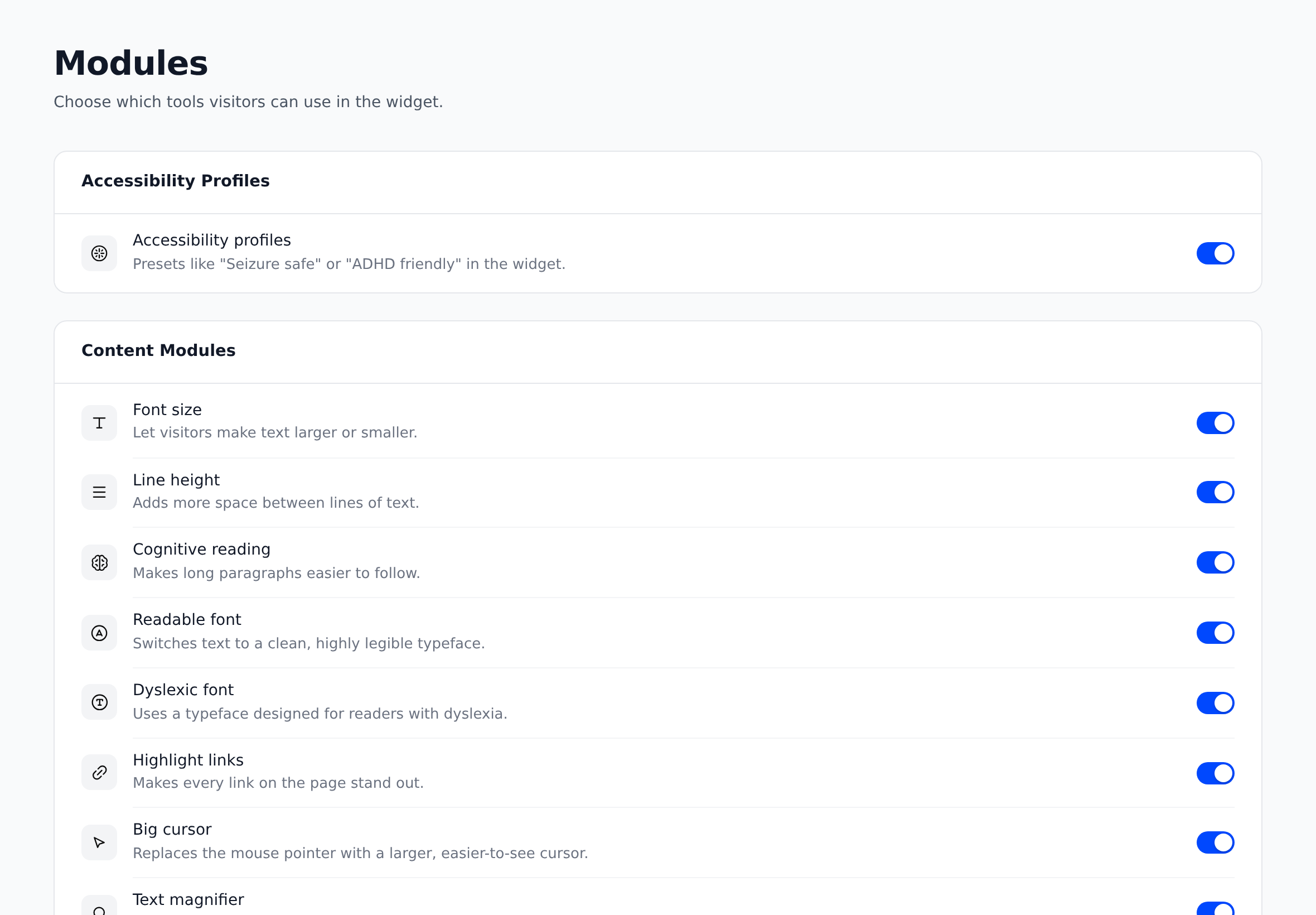
On the Modules page you decide which profiles and tools visitors find in the widget menu. "On" means visitors can use a tool – it never switches the tool on for them.
Before you start
- Pick the website in the website switcher at the top of the left menu. Every website has its own selection.
Choose the tools
Open the Modules page
Click Modules in the menu.
Switch tools on or off
Use the switches in the cards Accessibility Profiles, Content Modules, Color Modules, Orientation Modules, Navigation and Keyboard Shortcuts. Clicking anywhere on a row switches it too.
Save your changes
Click Save changes. Tools you switched off disappear from the widget menu on your website with the next page load.
Good to know
- For a new website, all tools and the profiles are on. Only Enable keyboard shortcuts is off until you turn it on.
- Accessibility profiles is one switch for all five profiles.
- A few names differ between this page and the widget: "Dyslexic font" appears as "Dyslexia font", "Read page" as "Read page aloud", and "Skip to content" as the "Jump to content" list.
- A tool you switch off is off everywhere on your website: its tile, its keyboard shortcut and the choice visitors made earlier. Their choice stays saved in their browser and applies again if you switch the tool back on.
- We recommend keeping as many tools on as possible – every tool helps a different group of people.
- If you switch off every module, the widget shows no button on your website. The page then says: "All modules are off, so the widget’s button isn’t shown on your website. Switch on at least one module."
Keyboard shortcuts
In the Keyboard Shortcuts card, turn on Enable keyboard shortcuts and click Save changes. Visitors can then use:
| Action | Windows / Linux | Mac |
|---|---|---|
| Open or close the widget | Ctrl + . | ⌘ + . |
| Read page aloud | Alt + Shift + R | ⌥ + ⇧ + R |
| Keyboard navigation | Alt + Shift + K | ⌥ + ⇧ + K |
All shortcuts use modifier keys, so they don't get in the way of people typing or using speech input. While the switch is off, the widget has no shortcuts and doesn't mention any. A tool you switch off has no shortcut either. The Escape key closes the widget menu in any case.
Skip to content
Skip to content adds the "Jump to content" list at the bottom of the widget menu. Visitors pick "Main content", "Navigation", "Footer" or "Sidebar" and jump straight there – useful for keyboard users who want to skip long menus. The list only shows areas the widget finds on the current page; it finds them best when your website uses standard page regions. More about skip links and ARIA landmarks.
Where the read-aloud player sits
Open the read-aloud settings
On the Modules page, click Customize in the Read page row.
Set the distance
Choose Desktop or Mobile, then move the Distance from bottom slider (0 to 240 pixels) or drag the player in the preview.
Save your changes
Click Save changes. Reset to default brings back 28 pixels on desktop and 16 pixels on mobile.
Avoid sticky elements automatically (on by default) moves the player above cookie banners, cart bars and chat buttons; your distance is kept as a minimum. Under Always avoid these elements (optional), your developer can list elements the player should always stay above.
Check that it works
Open your website in a private (incognito) window and open the widget menu: tools you switched off are gone, the others are there. With keyboard shortcuts on, press Ctrl + . (⌘ + . on a Mac) – the menu opens.
Does switching a tool on change my website?
No. It only lets visitors use the tool. A new visitor sees your website unchanged until they pick something in the widget menu.
A visitor still sees a tool I switched off
Their page was open before you saved. A reload removes it – a switched-off tool is off for everyone, also for visitors who had switched it on.
Why are Big cursor and Text magnifier missing on phones?
They need a mouse, so they don't appear on touch-only devices like phones.