Documentation
Set the widget languages
Choose your widget's default language, which of its 41 languages visitors can pick, and whether the widget follows the language of each page.
Updated October 16, 2026
The widget's menu is available in 41 languages. You choose the language it starts in, which languages visitors can pick and whether it follows the language of your page. Only the widget's own texts are translated – your website's content stays in its own language.
Before you start
- Pick the right website in the website switcher at the top of the left menu. Every website has its own languages.
Set the languages
Open the Language card
Click Design in the menu and scroll to the Language card.
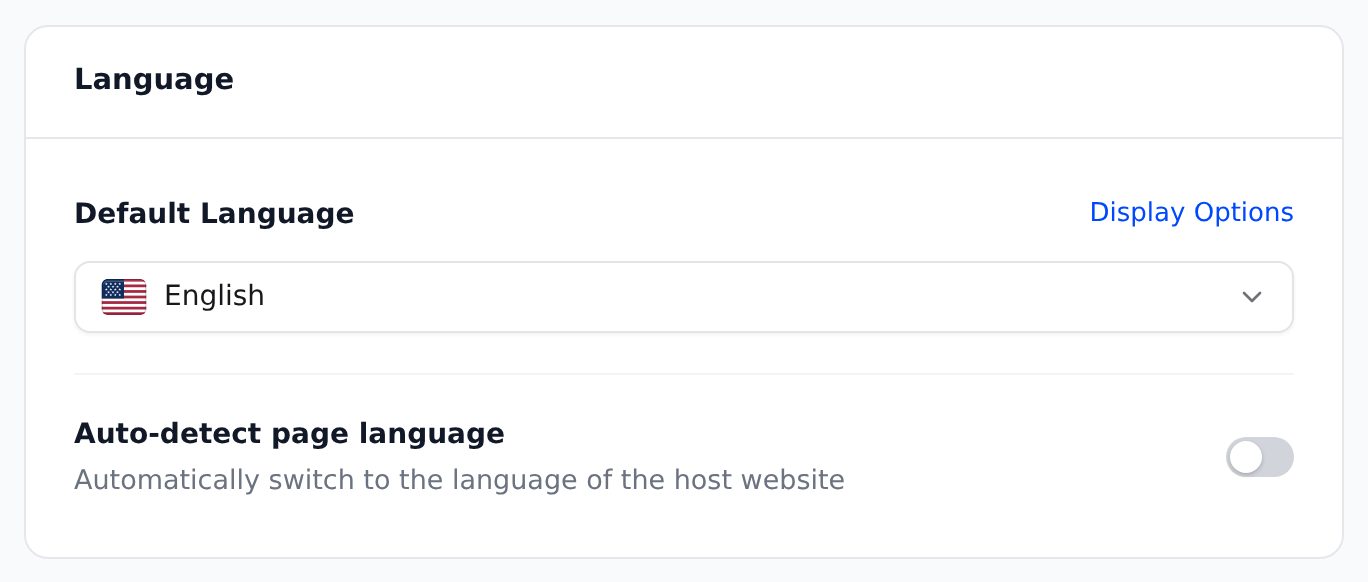
The Language card on the Design page. Choose the default language
Under Default Language, pick the language the widget starts in for new visitors.
Choose which languages visitors can pick
Click Display Options. Switch each language on or off, or use Enable All or Disable All. The default language is marked Default and always stays on.
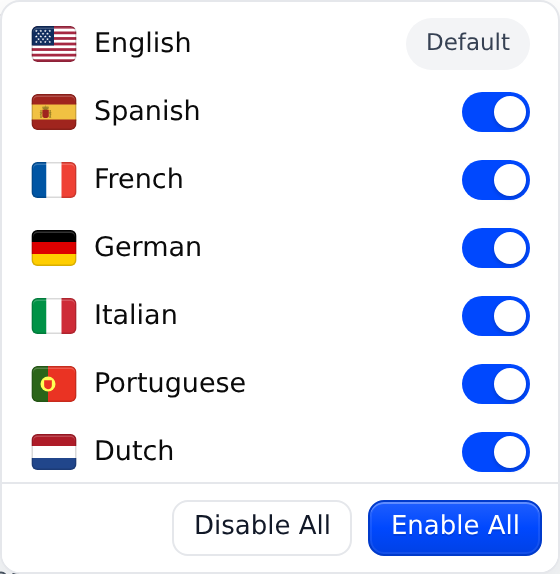
Display Options: the languages visitors can pick. Decide whether the widget follows your page
Turn on Auto-detect page language to open the widget in the language of the page the visitor is on. That's ideal for websites with several language versions.
Save your changes
Click Save changes at the top of the page.
New websites start with every language on. Enable All also offers languages allyWay adds in the future – they then appear by themselves.
Which language a visitor gets
- The language the visitor picked themselves before – it's remembered in their browser.
- The language of your page – only if Auto-detect page language is on and that language is offered.
- Your default language.
The widget doesn't look at the visitor's browser language. Visitors can switch any time with the flag button at the top of the menu, and search for a language by its own or its English name. For Arabic, Hebrew and Persian the menu is shown right to left.
How auto-detect reads your page: it reads the language code your page declares in its code, for example "de" for German (see missing lang attribute). It takes the page's exact language first ("pt-BR" opens the menu in Portuguese (Brazil) when you offer that), then its main language ("de-AT" → German), and knows other codes of the same language ("nb" and "nn" → Norwegian). If you offer only one variant of a language, a page in another variant gets that one ("en-US" → English (UK)).
Check that it works
Open your website in a private (incognito) window, open the widget and click the flag: the list shows the languages you offer. With auto-detect on, open a page of another language version of your website – the menu opens in that language.
Does the widget translate my website?
No. It translates only its own menu. Read page aloud reads your content in its own language, with a voice that matches the language of the text.
What happens if I offer only one language?
Then the flag at the top of the menu is just a label – there's no list, and the menu always appears in that language. To offer only one language, click Display Options, then Disable All.
A visitor picked a language that I switched off later. What do they see?
Their widget falls back to your default language.
Which languages are available?
English, British English, Indonesian, Spanish, French, German, Italian, Portuguese, Portuguese (Brazil), Dutch, Russian, Chinese (simplified), Japanese, Korean, Arabic, Hindi, Polish, Swedish, Finnish, Romanian, Slovenian, Slovak, Danish, Greek, Czech, Hungarian, Lithuanian, Latvian, Estonian, Croatian, Irish, Bulgarian, Norwegian, Turkish, Persian, Serbian, Ukrainian, Hebrew, Macedonian, Thai and Vietnamese.