Documentation
Send the installation code to your developer
Email your website's installation code and a step-by-step guide to your developer straight from the dashboard – they don't need an allyWay account.
Updated October 16, 2026
Someone else looks after your website? Send them your installation code from the dashboard. They get the code, where it goes and a link to a step-by-step guide – no allyWay account needed.
Before you start
- A running free trial or an active plan.
- Your developer's email address.
Send the code
Open the Installation code card
Pick the right website in the website switcher at the top of the left menu, open Integration and click Send to developer in the Installation code card.
Enter your developer's email address
In Send to your developer, type the address under Developer's email. We only use it to send this email.
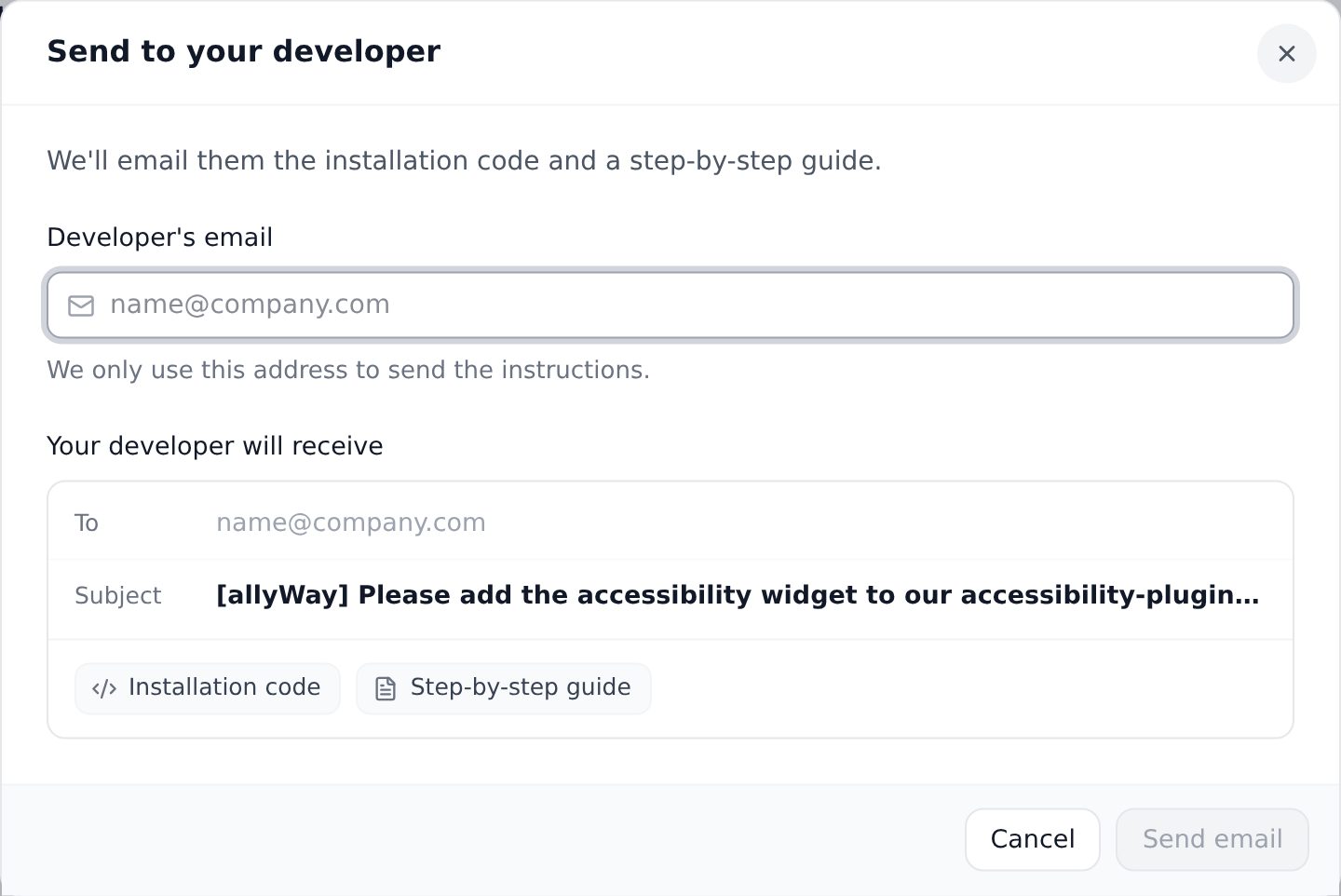
What your developer will receive. Check the preview and send
Under Your developer will receive you see what the email contains: the Installation code and a Step-by-step guide. Click Send email – you see "Email sent".
What your developer receives
- An email from allyWay that names you – by your account's email address – as the person who asked.
- Your website's installation code, created by our server, so it's always the code of the website you selected.
- Where to paste it (right before the closing
</body>tag) and a link to our step-by-step guide.
Replies go to your account's email address. The email contains no password and no login link, so your developer can't open your dashboard with it. The installation code is meant for your public website, so it's fine to share.
You can also send it from the setup: after you pick a platform in the installation guide, the email names it ("our WordPress site") and links to that platform's guide. Otherwise it names your website's address.
Check that it works
Once your developer has added the code, open Integration: the card shows Installed when our server has found it. See Check that allyWay is installed.
Troubleshooting
"You have sent many emails today. Please try again tomorrow."
You can send up to 10 of these emails per account and day. The count starts again at midnight UTC.
"Emails need an active plan or trial."
Your trial or plan has ended. Choose a plan first – or copy the code yourself and send it in your own email.
Can I add a personal message or several addresses?
No. The email has a fixed text, and each one goes to one address. To reach someone else, click Send to someone else after sending. Each email counts toward the daily limit.
"Please enter a valid email address." or "Couldn't send the email."
Check the address for typos. If sending failed, try again in a moment.
My developer didn't get the email
Ask them to check their spam folder and to search for "allyWay". Check the address and send it again – or click Copy in the Installation code card and send the code yourself.