Documentation
Check that allyWay is installed
See whether allyWay is on your website, what Installed, Not active and Not installed mean, and what to do when we can't find your code.
Updated October 16, 2026
allyWay checks by itself whether its code is on your website – you don't have to open your website first. This page shows where you see the result and what to do when it says something unexpected.
Where you see the status
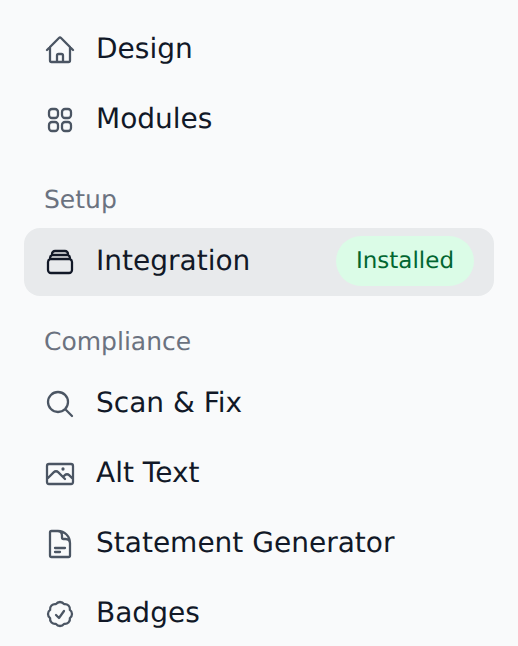
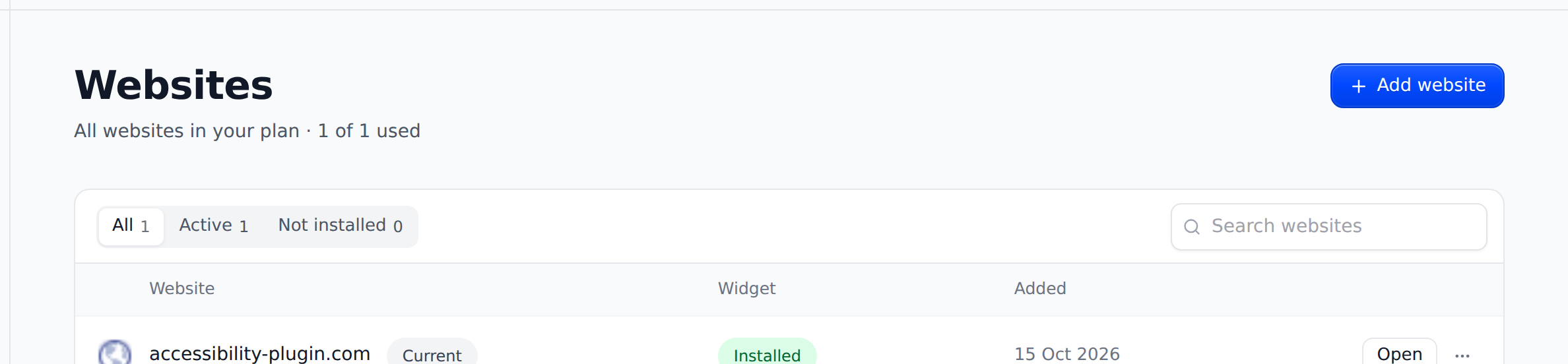
The status shows next to Integration in the left menu, on the Integration page in the Installation code card, and in the Widget column on the Websites page.
| Status | What it means |
|---|---|
| Installed | Our server finds your code on your homepage, or the widget reported in from your website in the last 24 hours. |
| Not active | allyWay was on your website before, but its code isn't on your homepage now and the widget hasn't reported in for 24 hours – for example after the code was removed. |
| Not installed | We haven't found allyWay on this website yet. |
Confirm the installation
Publish the code and clear your cache
Save and publish the change on your website. Clear your caching plugin, hosting cache and CDN cache.
Click Verify installation
On Integration, in the Installation code card, click Verify installation. The button shows while the card says Not installed or Not active. Our server looks at your homepage right away.
Read the message under the code
"Verified on …" means you're done. Any other message says what our server found – see the table below.
| Message | What to do |
|---|---|
| "allyWay isn’t on … yet" | The published version of your website has no code. Publish the change, clear your cache, then click Try again. |
| "… so we’re now opening … in a browser" | A tag manager or plugin adds the code later. Our checker's browser looks – wait about a minute. |
| "… still has an older allyWay code" or "… has the allyWay code of …" | Replace it with the code shown on Integration, with the right website selected. |
| "… has allyWay’s code, but its address is broken" | The code's address has a typo, for example "Shttps://" instead of "https://", so browsers don't load it. Copy the code again and replace the old one. |
| "… blocked our check" | A password, maintenance or "coming soon" page, or bot protection keeps us out. Make the website public or allow our checker. |
| "… sends visitors to another website" | We look at the address you added. Add the domain where your pages really are. |
While the card shows Not installed, it also looks again by itself about every 15 seconds, for up to 10 minutes. Before every check our server looks for the code too, and every check notices allyWay on the pages it reads.
What changes once allyWay is installed
- Your visitors can use the widget.
- Our checks read as many pages as your plan includes, instead of at most 50.
- With a plan, allyWay's fixes start. During the free trial allyWay fixes nothing.
Check that it works
Open your website in a private (incognito) window, click the round allyWay button and switch on a tool. Then click Reset settings. Also try it on your phone.
I added allyWay with a tag manager. Why isn't it confirmed?
Our server first reads your homepage's HTML, where a tag manager's code isn't. Click Verify installation: we then open your homepage in our checker's browser, which runs your tag manager like a visitor's browser. That takes about a minute.
The status changed from Installed to Not active. Did something break?
allyWay was on your website, but its code isn't on your homepage now and the widget hasn't reported in for 24 hours – often after a theme, plugin or footer change. Add the code from Integration again, publish, and come back to the dashboard's tab: the status shows Installed within a few seconds. Or click Verify installation. Your settings, checks and fixes stay.
Added allyWay with a tag manager? Then the status goes by the widget's own report, which each visitor's widget sends at most once an hour. A website without visitors for a day can show Not active until the next visit.
Does Installed mean the widget shows right now?
Not always. When allyWay is switched off for your account – your trial or plan ended, or a payment didn't go through – the widget doesn't appear on your website, but the status stays Installed while the code is on your homepage.
Do I have to remove the code when my trial ends?
No. The widget switches itself off, and nothing on your website breaks. If you choose a plan later, the same code works again.