Documentation
The Report at a glance
Find your way around the Report: its numbers, the parts To approve, To fix and Fixed by AI, the History tab, and what changes in the free trial.
Updated October 23, 2026
The Report shows what our check found on your website, what allyWay fixed for you and what is left to do. This page walks you through its parts.
Before you start
- A website in your account. The Report always shows the website selected at the top of the left menu.
- The Report is included in the free trial and in every plan. allyWay's fixes come with a plan, so during the trial the Report looks different – see "During the free trial" below.
Open the Report
Choose the website
Click the website name at the top of the left menu and choose the website under Switch website.
Click Report
In the left menu, click Report under Compliance. On a phone, first open the menu with the menu button at the top left. On the Overview, Review opens To approve and Open guide opens To fix.
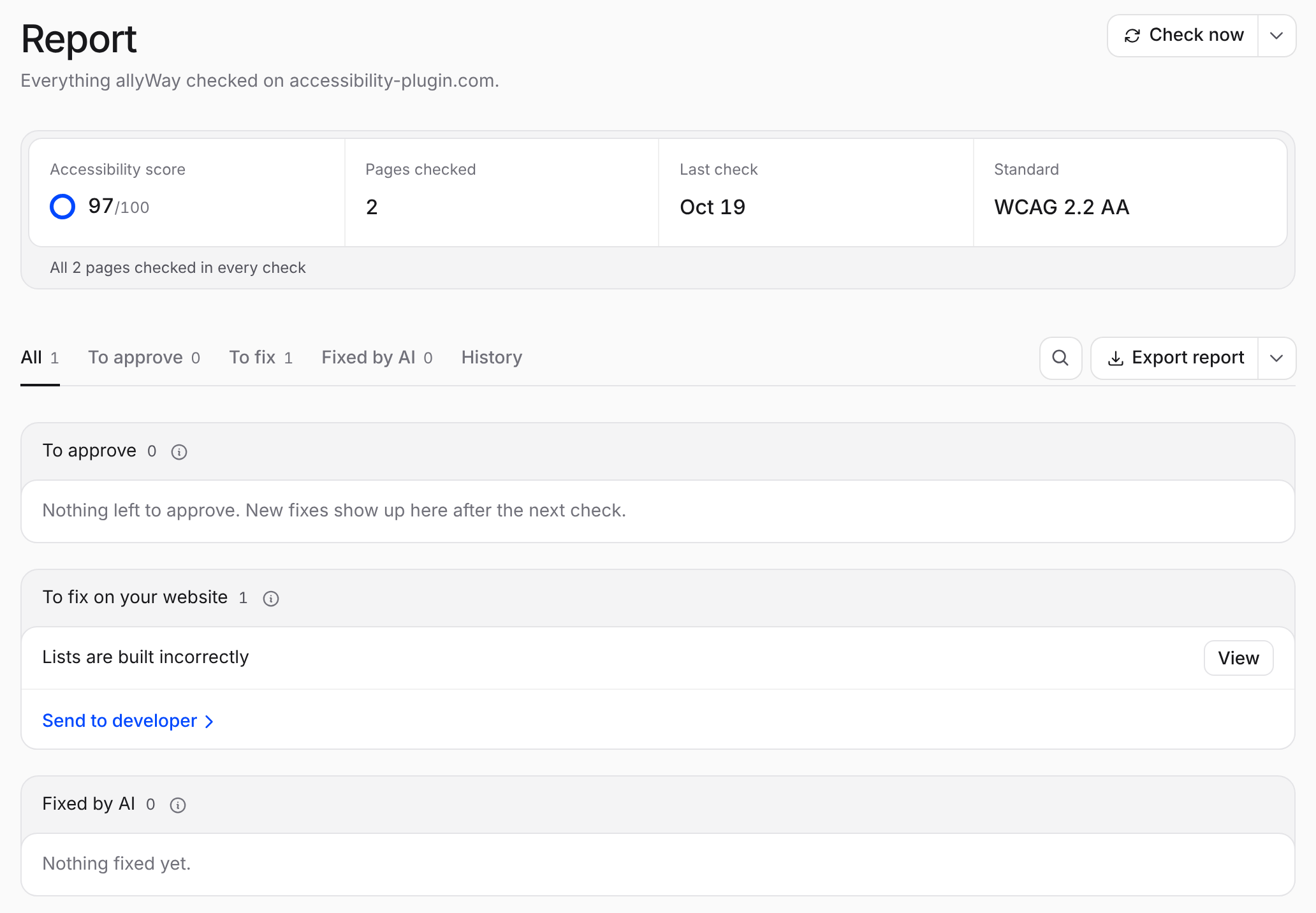
The top of the page
Under the title, the Report names the website: "Everything allyWay checked on shop.com." Check now starts a check yourself – see Run a check.
Four numbers sum up the last check: Accessibility score (for example "83/100"), Pages checked, Last check and Standard ("WCAG 2.2 AA"). The line under them says how much of your website the checks cover. See Your accessibility score.
The parts
With a plan, the Report sorts every issue into a part:
- To approve – fixes the AI prepared that wait for your OK. Approve puts them live; Approve all … › at the end of the part approves them all.
- To fix on your website – changes you or your web designer make, each with a step-by-step guide. Send to developer › emails them to whoever builds your website.
- Fixed by AI – what allyWay fixed, live on your website. You can undo any of it.
- Hidden by you – issues you said aren't a problem, at the end of the All tab.
The tabs All, To approve, To fix, Fixed by AI and History show one part each. Search finds issues and pages, and Export report downloads a PDF report of this month so far.
The most serious issues come first, and issues with places the latest check found for the first time say New. Point at a row to see its places, for example "14 places · on 2 pages". View opens the issue's panel: what AI will change, why it needs a change with numbered steps, or what AI changed.
Issues and places
An issue is one kind of problem, for example "Images without a description" – see alt text. A place is one element with that problem. If the same element appears on many pages, like a logo in your header, it's still one place – "on 300 pages" – because changing it once usually fixes it everywhere. All numbers on the Report count places. A place found on at least 80% of the pages we checked is Everywhere on your site: change it once in your theme or template.
The History tab
History shows how your website develops: your score since your first check, what was fixed by AI and by you, what is still open, a line of your last 12 scores, and every check with when it ran, what it read and its score.
What the check covers
Our check tests your pages against WCAG 2.0, 2.1 and 2.2 at levels A and AA, plus best practices – see WCAG 2.2. Automated checks find many common problems, but not every barrier, so a good score is a big step, not a guarantee. See What allyWay fixes – and what it can't.
During the free trial
allyWay checks your website but fixes nothing – its fixes come with a plan. The Report shows a card with your score and what the check found, and below it "Let allyWay fix your 152 issues – automatically with AI." with See pricing and Fix my issues. The tabs are All issues – every issue, the most severe first, with a badge Critical, Serious or Minor – and History. There's no Check now: your website is checked automatically. When the trial ends, checks stop until you choose a plan; your results stay saved. See The free trial.
Troubleshooting
- "The Report could not be loaded." Click Try again. If that doesn't help, reload the page or log out and in again.
- "Please select a domain first" No website is selected yet. Add a website or pick one at the top of the menu.
- A website is paused It isn't checked until it's active in your plan again; its results stay for 30 days. See Paused websites.
Where are the To do, Done and All issues tabs?
They were replaced. To do is now To approve and To fix, Done is Fixed by AI, and All issues is All. During the free trial, All issues still lists everything the check found.
Why are allyWay's results different from other checkers?
Tools use different rules and count differently. allyWay counts each element once however many pages show it, sees your pages with its fixes applied, and checks the pages of your plan in rotation. No automated tool finds every barrier.
What happens to the results if I delete a website and add it again?
Deleting a website deletes its issues, history and score. Added again, it starts fresh and is checked right away – as one of the month's checks.
Why do I see "AllyWay Accessibility Audit Bot" in my analytics?
That's our scanner reading your pages. See How our check visits your website.