Documentation
Your profile and deleting your account
Change your name or company, find your version number, use allyWay on several devices, secure your account – or delete it for good.
Updated October 23, 2026
Your account settings hold your profile, your password and your plan. This page shows how to change your name, what to do if someone else might have access to your account, and how to delete it.
Open your account settings
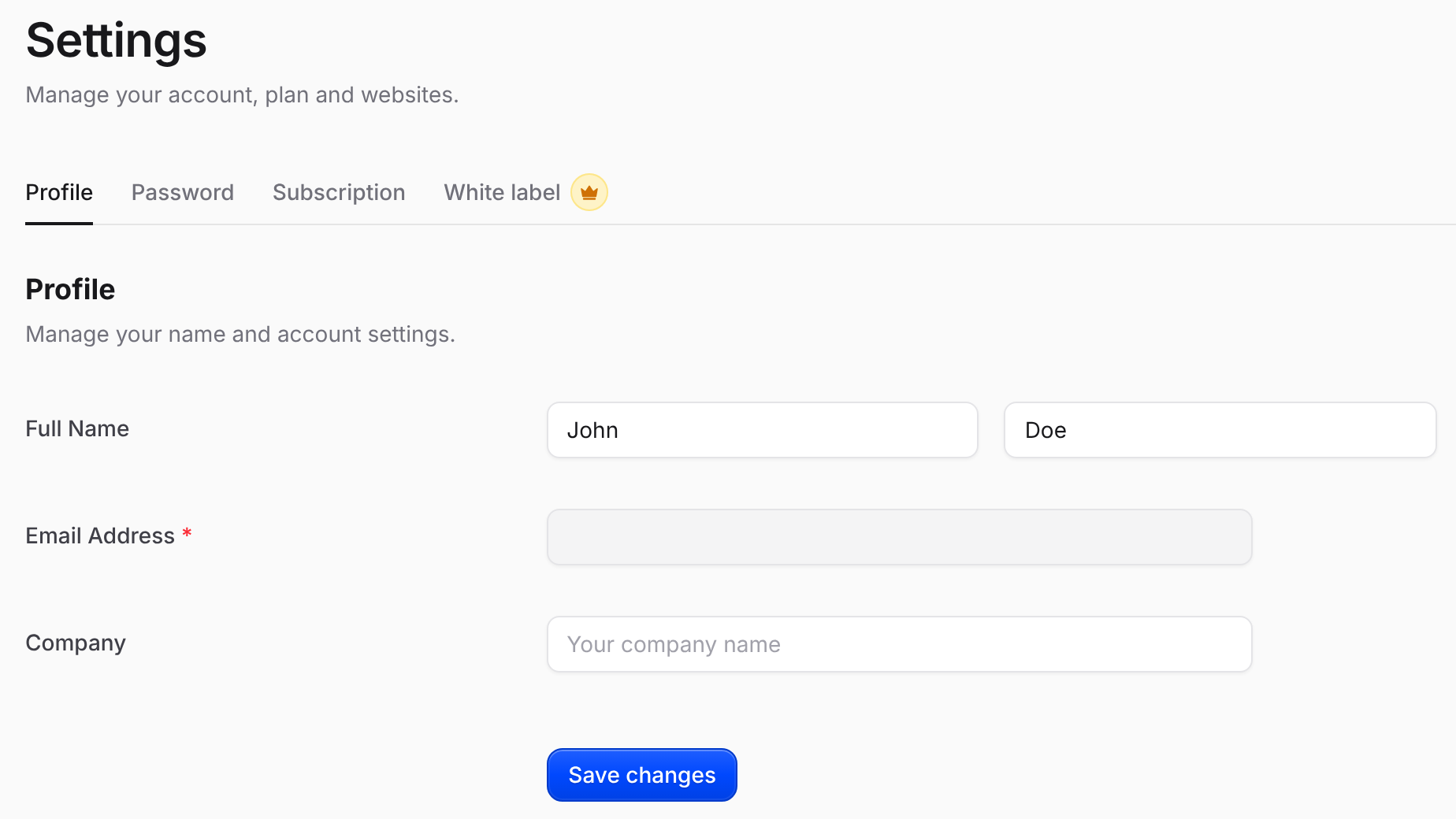
Click your name at the bottom of the left menu and choose Account settings. Settings has four tabs:
- Profile – your name and company, Remove website, Delete account and the version number.
- Password – Change password and Log out on all devices. See Log in and manage your password.
- Subscription – your plan, websites and invoices. See Invoices and your payment method.
- White label – your logo, name and color for the reports you send your clients. It works with a plan of 5 websites or more.
The same menu also has Pricing, Get support, Help center and Log out.
Change your name or company
Open the Profile tab
Click your name at the bottom of the menu, choose Account settings and stay on Profile.
Change your details
Under Full Name, change your first or last name, or change Company. First and last name can't be empty and can have up to 50 characters each; the company name up to 100.
Save
Click Save changes. You see "Changes saved".
Your name appears at the bottom of the menu and in allyWay's emails to you. Paying with a card in another name, or a company name in the billing portal, doesn't change it. The company name in your accessibility statement is separate – change it in the Statement Generator.
Find your version number
On the Profile tab, scroll to the bottom: below Delete account you see the version, for example "v2309-574". Our support team may ask you for it.
Contact support
Click Help in the dashboard to ask our support assistant – it answers right away. For anything it can't solve, click your name at the bottom of the menu and choose Get support: it opens our support page. Mention your website's address and, if possible, your version number. Can't log in? Go to the support page directly. More in Get help from our team.
Devices, team members and language
- Several devices: log in on every device or browser you want to use – your websites and settings are stored in your account. A few small choices are remembered per browser only, such as the selected website and Show website name on badge.
- Your phone: the dashboard works in your phone's browser. The menu is hidden on small screens – tap the menu button at the top left to open it.
- Team members: an account has one login (one email address); you can't invite colleagues. A developer who helps you gets the installation code or the fix instructions by email with Send to developer and doesn't need an account. Don't share your password.
- Two-factor authentication: not available. If you log in with Google, your Google account's security settings apply – including Google's 2-Step Verification, if you've turned it on.
- Language: the dashboard and allyWay's emails are in English. Your visitors can use the widget in 41 languages – see Set the widget languages.
If someone else might have access
- You're still logged in: go to Settings → Password, enter your current password and a new one, and click Change password. You see "Password changed. Your other devices have been logged out."
- You can't log in: click Forgot password? on the login page and set a new password with the link from the email. Every login of your account ends.
- You log in only with Google: secure your Google account, then click Log out on all devices in Settings → Password.
Then click your name at the bottom of the menu, choose Get support and tell us what happened. Check your email account's security too – password reset links are sent there.
Delete your account
Deleting your account removes it with all websites, their settings, check results and AI fixes right away. It can't be undone.
Click Delete account
On the Profile tab, scroll to Delete account, below Remove website, and click Delete account.
Confirm
In the window Delete your account?, enter your password under Your password – or, if you sign in only with Google, type
DELETEunder Type DELETE to confirm. Then click Delete account.Remove allyWay's code from your websites
The login page opens and says "Your account has been deleted." Remove the installation code and any badge code from your websites.
The installation code left on a website shows nothing any more, and an embedded badge with your website name shows the plain badge until you remove its code. Your invoices and payment records stay with our payment provider Stripe for bookkeeping. Remove website only removes the selected website, not your account – see Manage and remove websites.
Why it says "Cancel your plan first"
Your plan is still running and would keep charging you – and allyWay never cancels a plan for you. Click Open billing portal, cancel your plan there, come back and click Delete account again. You don't have to wait until the plan ends: if you delete your account before its end date, nothing more is charged. See Cancel or renew your plan.
The window appears for every plan that hasn't ended and isn't canceled yet – also when a payment is overdue or failed, your first payment is still open, or the plan is paused.
Troubleshooting
- "That password isn’t right." Type your allyWay password again. Don't know it? Log out, set a new one with Forgot password? on the login page, log in and try again.
- It still says "Cancel your plan first" although you canceled. Wait a minute and reload the page.
- "Your account couldn’t be deleted. Please try again." Wait a moment and try again.
- A window you can't close, for example "Your trial has ended". Click Account settings in it: Settings stays open, and Delete account is on the Profile tab. See Why your account is locked.
- "Failed to update profile. Please try again." Make sure first and last name aren't empty, then save again.
- "Unsaved changes". You changed something on a page and haven't saved it. Save and continue saves it, Discard changes throws it away; close the window to stay on the page.
- "Could not load your websites." Check your internet connection and click Retry. If it says "Too many requests – please try again in a minute.", wait a minute first.