Documentation
Log in and manage your password
Log in with your email or Google, stay logged in, log out on one device or all of them, and reset or change your allyWay password.
Updated October 21, 2026
Log in, log out on one device or everywhere, and reset or change your allyWay password. To create an account, see Sign up for allyWay.
Log in
Open the dashboard
Open the allyWay dashboard.
Enter your email and password
On Welcome back, enter your Email and Password and click Log in – or click Continue with Google above the fields if you signed up with Google.
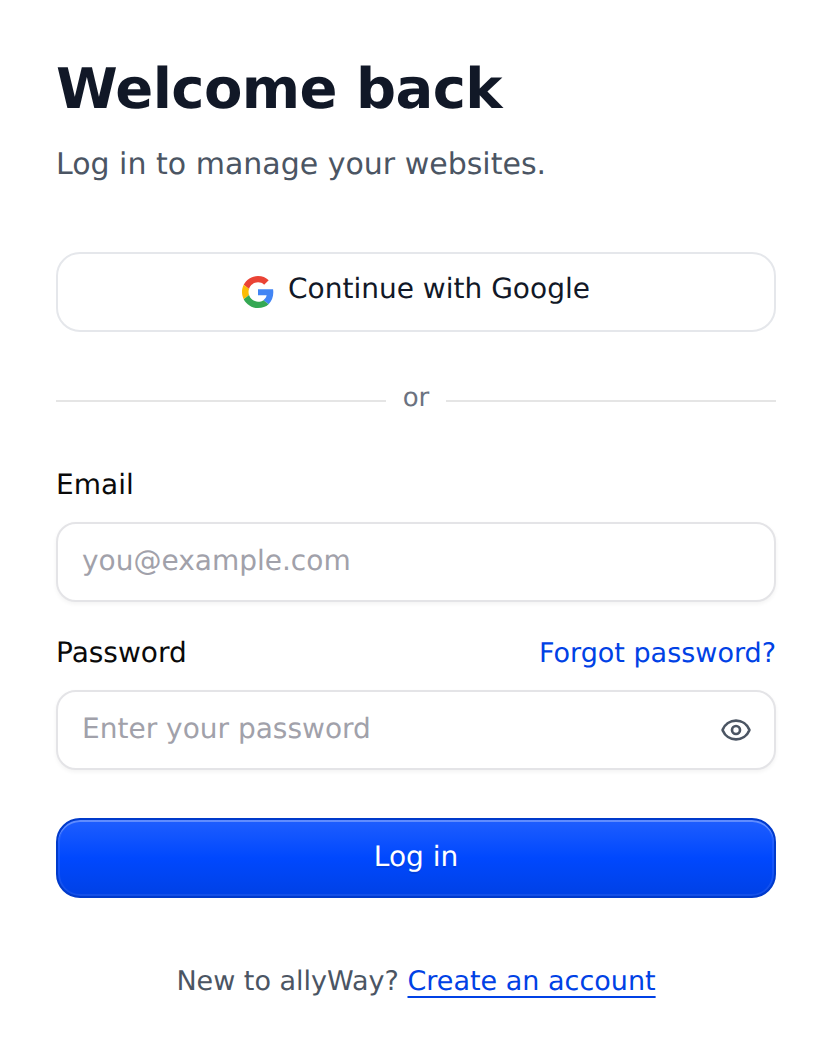
The login page.
If you opened a dashboard page before logging in – a link in one of our emails, a bookmark – you land on that page.
Log in with Google
If an allyWay account with your email address already exists – also one created with email and password – Continue with Google opens it; you don't get a second account. Only Google-verified addresses work. Choose the Google account with your allyWay address; another one creates a new account. An account created with Google has no password until you set one with Forgot password? – then you can log in either way.
How long you stay logged in
Your login lasts 7 days and renews itself while you use allyWay. After a few weeks without using the dashboard – 30 days at the latest – you're asked to log in again. Each browser and device has its own login, so on shared computers, always log out when you're done.
Log out
Click your name at the bottom of the menu and choose Log out – on a phone, open the menu with the menu button at the top left first. This ends your login on this device only and reloads the page, so nothing of your account stays in this browser. If the page has unsaved changes, allyWay asks first.
Log out on all devices
Use this if you lost a device or logged in on someone else's computer.
Open the Password tab
Click your name at the bottom of the menu, choose Account settings and open Password.
Click Log out on all devices
In the section Log out on all devices, click Log out on all devices.
Confirm
In the window Log out on all devices?, click Log out everywhere.
Every login of your account ends, this one too, and the login page opens. Your password stays the same – if someone else might know it, change it as well.
Reset a forgotten password
Click Forgot password?
On the login page, click Forgot password? next to Password.
Ask for a reset link
On Reset your password, enter your account's email address and click Send reset link.
Open the email
In the email about resetting your password, click Reset my password – or copy its link into your browser.
Save a new password
On Set a new password, enter it under New password and Confirm new password and click Save new password.
The link works for 1 hour, once – and only the newest link works. Saving the new password ends every login of your account. For your security, the page shows the same message even if no account exists for that address.
Change your password
Open the Password tab
Click your name at the bottom of the menu, choose Account settings and open Password.
Fill in the fields
Under Change password, fill in Current password, New password and Confirm new password.
Click Change password
You see "Password changed. Your other devices have been logged out." The device you're using stays logged in.
Don't know your current password? Log out and use Forgot password?. Accounts that sign in only with Google see Email me a link instead: the link lets you set a password, which logs you out on all devices.
Password rules
Every new password needs at least 8 characters – there are no other rules. We recommend a long password you use only for allyWay. An older, shorter password still works for logging in until you change it.
Check that it works
You're logged in when the dashboard opens – or the setup, if you haven't added a website yet.
Troubleshooting
I can't log in
"Invalid email or password. Please try again." – check the spelling, make sure Caps Lock is off and use the address you signed up with. Set a new password with Forgot password?, or click Continue with Google if you signed up with Google. "Too many sign-in attempts. Please wait 15 minutes and try again." – wait 15 minutes. Still stuck? Try another browser or a private window, or contact our support team.
Why was I suddenly taken to the login page?
Your login ended – the login page usually says "You’ve been signed out. Please log in again." That happens after a few weeks without using the dashboard, after your browser data was cleared, or after a password change or Log out on all devices. Log in again to get back to the page you were on; changes you hadn't saved may be lost. Didn't change your password or log out everywhere yourself? Set a new password with Forgot password? – it ends every login of your account.
The reset link doesn't work, or no email arrives
"This link has expired or was already used." – click Request a new link and use the newest email right away. No email? Check that you typed the right address, look in your spam folder and, in Gmail, the "Promotions" and "Updates" tabs. Reset emails are limited to 5 an hour from the same network. If a box appears on Reset your password, tick it: it's a security check against bots.