Documentation
Sign up for allyWay
Create your allyWay account with email and password or with Google, start your free trial, log in later and reset a forgotten password.
Updated October 22, 2026
Create your allyWay account with your email address and a password, or with your Google account. This page also covers your free trial, logging in later and a forgotten password.
Create your account
Open the sign-up page
Open the allyWay sign-up page. From the login page, you get there with Create an account under New to allyWay?.
Fill in the form
On Create your account, enter your first name, last name and email address, choose a password with at least 8 characters and click Create account.
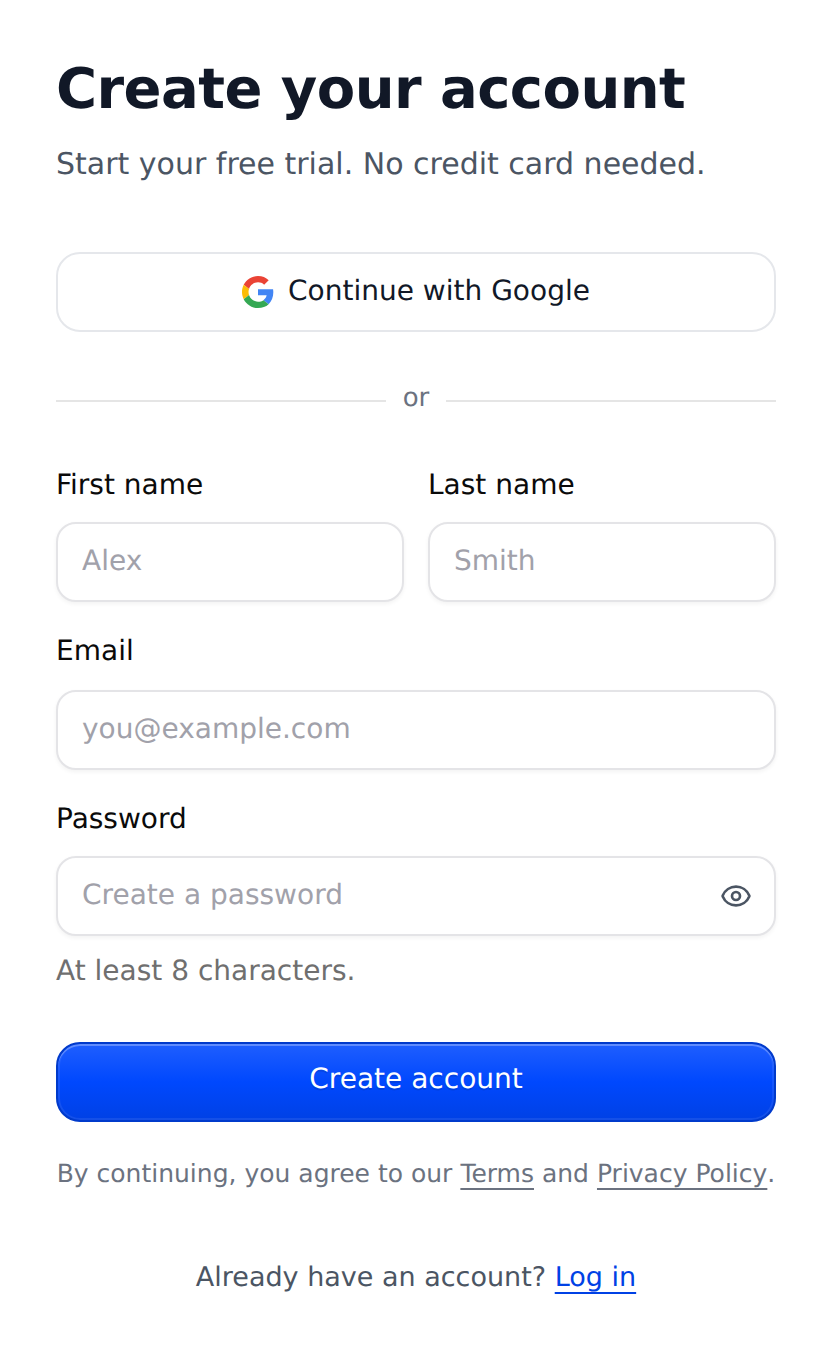
The sign-up page. Add your website
Your free trial has started, and the setup opens so you can add your website – see Set up your first website.
Sign up with Google
On the sign-up page, click Continue with Google at the top. Choose your Google account and confirm. The setup opens, with the same 7-day free trial as an email sign-up.
- Only email addresses that Google has verified can sign up or log in with Google.
- If an allyWay account with that email address already exists – also one created with email and password – Google sign-in opens it. You don't get a second account or a second trial.
- An account created with Google has no allyWay password. To set one, use Forgot password? on the login page or Email me a link in Settings → Password.
Your free trial
Your 7-day free trial starts the moment you create your account – no credit card needed. You can add 1 website: allyWay checks it for free, right after you add it and then automatically every week, and shows you what to fix. allyWay's fixes come with a plan; the trial has no AI fixes.
After 7 days, allyWay stops working for your account until you choose a plan: the widget no longer appears on your website and checks stop. Nothing on your website breaks, and your settings and data are kept. See Plans and what they include.
Your password
Every new password needs at least 8 characters – when you sign up, reset it or change it in Settings → Password. There are no other rules, but we recommend a long password you don't use anywhere else. Your password is stored encrypted; we can't see it or send it to you.
To see what you typed on the login or sign-up page, click the eye at the right end of the password field (Show password); click it again to hide it. When you send the form, the password is hidden again by itself.
Log in later
Open the allyWay dashboard. On Welcome back, enter your Email and Password and click Log in – or click Continue with Google if you signed up with Google. You land on the Overview of your current website, or in the setup if you haven't added a website yet.
- You stay logged in on that browser; your login renews itself while you use the dashboard. If you don't use allyWay there for about 30 days, or you clear your browser's data, you need to log in again.
- To log out, click your name at the bottom of the left menu, then Log out. Log out on all devices in Settings → Password logs you out everywhere.
Reset a forgotten password
Click Forgot password?
On the login page, click Forgot password? next to Password.
Ask for a reset link
On Reset your password, enter the email address of your account and click Send reset link.
Open the email
In the email about resetting your allyWay password, click Reset my password – or copy the link into your browser.
Save a new password
On Set a new password, enter your new password in New password and Confirm new password and click Save new password. Then log in with it.
The link works for 1 hour and only once; if you ask for another one, only the newest link works. Saving a new password logs you out on every device.
Check that it works
Right after you create your account, the setup opens: you're logged in, and your free trial is running.
Troubleshooting
It says "An account with this email already exists". What now?
Each email address can have only one allyWay account, and yours already has one – maybe created with Continue with Google, or with the address written differently: allyWay ignores upper and lower case and, for Gmail, dots and "+tags". Click Log in under the sign-up form and log in. Don't know your password? Click Forgot password? there.
Google sign-in opened a new, empty account
You probably chose a Google account with a different email address. Log out and use the Google account – or the email address – you use for allyWay.
The reset link doesn't work
"This link has expired or was already used." means the link is older than 1 hour, was already used, or a newer link was sent – click Request a new link. No email at all? Check your spam or junk folder, wait a few minutes and make sure you used the email address you signed up with.