Documentation
Change your plan
Upgrade or downgrade your plan, switch between monthly and yearly billing, and see what you pay and when each change takes effect.
Updated October 18, 2026
You can change your plan any time on the pricing page – more or fewer websites, monthly or yearly billing. A window shows exactly what happens and what it costs before anything changes. You don't need to cancel to change your plan.
Before you start
- No open payment. If the plan buttons say Update payment method, a payment is open – fix it first, see Invoices and your payment method.
- Only one scheduled change – a downgrade or a switch to monthly billing – can wait at a time.
When a change takes effect
| Change | Takes effect | What you pay |
|---|---|---|
| More websites (upgrade) | Immediately | The difference for the rest of your billing period, then the new plan's full price from your next renewal |
| Monthly to yearly | Immediately – a new yearly period starts today | The yearly price minus a credit for the unused part of your current month |
| Fewer websites (downgrade) | At the end of your billing period | Nothing today; the new price from that date |
| Yearly to monthly | At the end of your yearly period | Nothing today; the monthly price from that date |
Upgrade or switch to yearly billing
Open the pricing page
Click Change plan in Settings → Subscription, or click your name at the bottom of the left menu and choose Pricing. The page opens on your plan's billing cycle, and your plan shows Current plan.
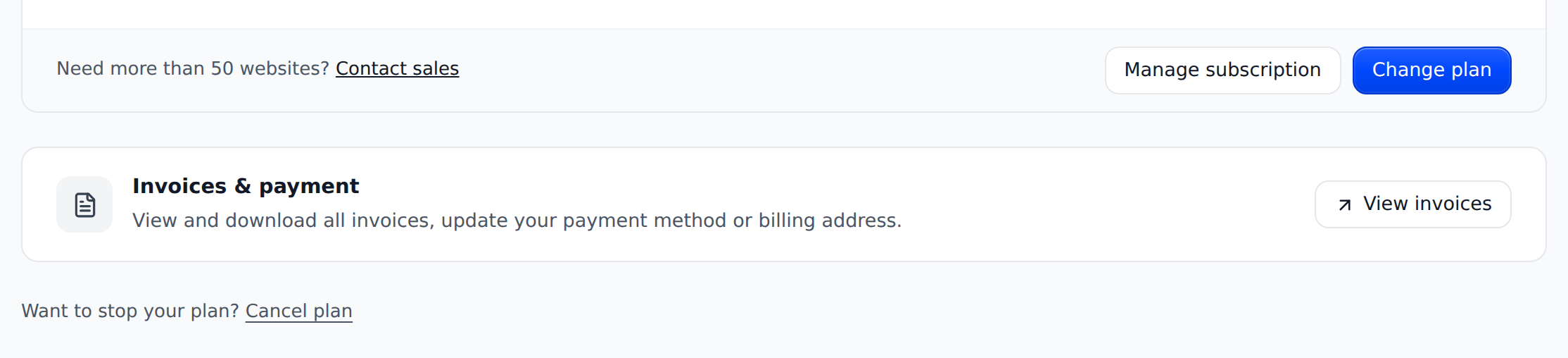
Change plan opens the pricing page. Choose Monthly or Annual
Pick the billing cycle you want for your new plan.
Click Upgrade
Click Upgrade on a bigger plan. To switch to yearly billing with the same number of websites, choose Annual and click Upgrade on your current plan.
Check the amounts and confirm
The window "Switch to …?" shows Due today and From …. Click Confirm switch. You see "Switched to …".
In the window, Due today is what your card is charged right now, and From … is the price you pay from that date on, as Stripe will charge it – both including tax. A credit line shows how much of what you already paid is taken off; a credit bigger than today's amount stays on your account for your next payments and isn't paid out. Nothing is charged until you click Confirm switch, and if the payment needs your confirmation or fails, you stay on your current plan. After an upgrade you can add websites right away, and websites that were paused because they didn't fit come back while there are free places.
Downgrade to fewer websites
Click Downgrade
On the pricing page, choose Monthly or Annual for your new plan and click Downgrade on the smaller plan. The window Downgrade your plan opens.
Read the date and the new price
The window says "On … your plan changes to … websites, billed monthly." (or yearly) and shows the new price including tax.
Choose the websites to keep
If you have more websites than the smaller plan includes, tick the ones to keep under "Choose … websites to keep active". The others show Will be paused.
Confirm
Click Confirm downgrade. You see "Downgrade scheduled — effective …".
You keep your current plan, its websites and its limits until that date; that time is already paid for and isn't refunded. On that date, websites that don't fit are paused: their widget, checks and AI fixes stop. We keep their data and fixes for 30 days, so you can switch them back on; a website paused for longer is deleted with its data. Plans with fewer than 5 websites don't include white label, and a smaller plan monitors fewer pages per website. While a downgrade is scheduled, you can't add websites.
Switch from yearly to monthly billing
Choose Monthly
Open the pricing page – it opens on Annual, your plan's billing – and choose Monthly.
Click the button on your current plan
It says Upgrade. The window "Switch to monthly billing?" shows Effective from: … and the monthly price including tax.
Confirm
Click Confirm. You see "Billing switches to monthly on …".
The switch happens at the end of your yearly period: nothing is charged today, and your websites stay as they are. For a bigger plan with monthly billing, click Upgrade on that plan instead – that switch happens immediately, and the unused yearly time is credited toward your monthly payments.
Take back a scheduled change
A yellow bar at the top of the pricing page shows a scheduled change, for example "Billing switches to monthly on …". Click Cancel in that bar – your current plan simply continues, and websites you had chosen to pause stay active.
While a change is scheduled, you can't upgrade: Upgrade opens "Cancel your scheduled change first" with Cancel scheduled change. Take the change back there, then choose the bigger plan again.
Check that it works
Open Settings → Subscription. After an upgrade, the Current plan card shows your new plan right away. After a scheduled change, a yellow note says "Your plan changes on … From then on it costs …".
Will I pay less if I remove or pause a website?
No. Your price depends on your plan, not on how many of its websites you use. To pay less, downgrade to a smaller plan.
Can I change my plan in the billing portal?
No. Please change it on the pricing page in allyWay: it shows the exact amounts first and lets you choose which websites stay active. The billing portal doesn't offer plan changes.
I had canceled my plan. What happens when I change it?
Changing your plan withdraws the cancellation – whoever changes the plan wants to keep it. To end the plan after the change, cancel again in the billing portal. See Cancel or renew your plan.
Why is the Downgrade button grayed out?
A change is already scheduled – a downgrade or a switch to monthly billing. Take it back in the yellow bar at the top of the pricing page first.